Core Features
Port Management
View and manage active ports per workspace
Overview
Orca does not assign per-workspace port ranges. It discovers listening ports from processes in each workspace, and the list updates as processes start and stop listening.
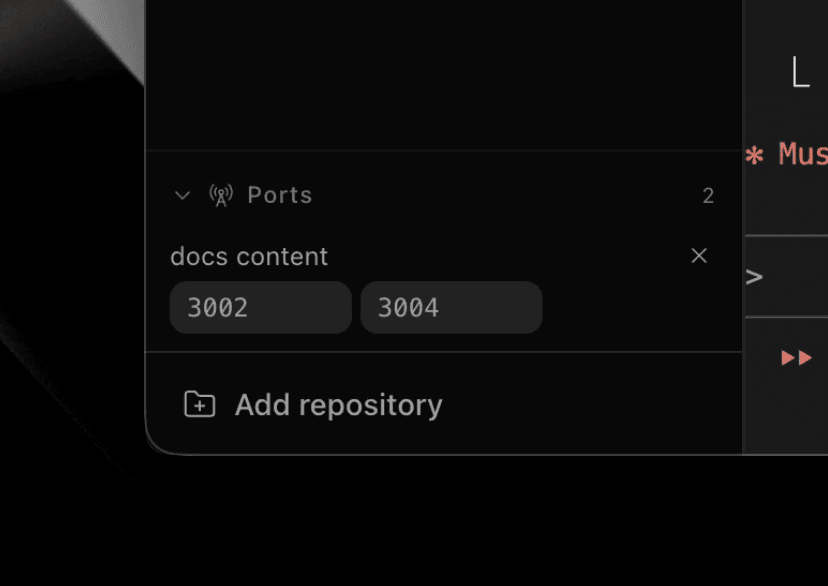
Features
- View active ports - See which processes are using which ports
- Kill processes - Stop a process by clicking its port
- Workspace grouping - Ports are grouped by the workspace that owns the process
- Terminal focus - Select a port to jump back to the terminal that owns it
- Browser actions - Open local web servers in the in-app browser or externally from the port action
Port Labels
Label detected ports by creating ports.json in your repository's config folder (.orca/, or .orca/ if your config is still there):
{
  "ports": [
    { "port": 3000, "label": "Frontend Dev Server" },
    { "port": 8080, "label": "API Server" },
    { "port": 5432, "label": "PostgreSQL" }
  ]
}
Fields:
port: port number (1-65535)label: display text shown in the tooltip
Behavior:
- Labels apply only to ports detected as listening. Ports without a label still appear.
- Each workspace reads labels from its own worktree's file.
- Changes are detected automatically.
- If
ports.jsonis malformed, detected ports still appear without labels until you fix the file. - The browser action opens ports at
localhost:PORT. Remote workspace ports are forwarded to your machine first.
Commit .orca/ports.json to share labels with your team.
For deterministic per-workspace port ranges, reserve a range in a shared file (for example ~/.orca/port-allocations.json) in a setup script and release it in a teardown script. See this repo's examples: .orca/setup.sh and .orca/teardown.sh.
Remote Access
The desktop app forwards detected ports from the selected remote workspace to your machine. If a local port is busy, choose Use another port from its row. See remote port forwarding for requirements and behavior, or forward a port yourself below.
Cloud workspace ports
Orca forwards nothing from a cloud workspace until you choose to. Click Forward on a port in the Share popover (under Ports on this computer), the sidebar ports card, or the top-bar ports dropdown. If the local port is busy, Orca uses the next free one and the row says which port it chose. A forward lasts until you click Stop, sign out, or quit.
Inside a cloud workspace, orca ports list shows who forwarded which port. See the CLI reference.
Forward a port yourself
SSH: forward the port, then open http://localhost:3000 locally:
ssh -N -L 3000:localhost:3000 user@remote-hostTailscale: on the host, expose the port to your tailnet and open the URL it prints:
tailscale serve 3000Both work for servers that only listen on loopback. If the server binds 0.0.0.0, you can skip the tunnel and hit the host's Tailscale name directly (http://remote-host:3000).